Review & Edit Notes
How to review AI-generated notes and make edits
Taking Control of Your Documentation
While ROSC's AI generates highly accurate medical notes, you always have final say over your documentation. This tutorial shows you how to review and refine AI-generated notes to ensure they perfectly match your clinical standards.
Understanding the Review Process
After ROSC processes your recording, you'll receive a structured medical note that includes:
- Chief complaint and history of present illness
- Physical examination findings
- Assessment and diagnosis
- Treatment plan and recommendations
- Follow-up instructions
Step-by-Step Instructions
- 1
Wait for AI processing to complete
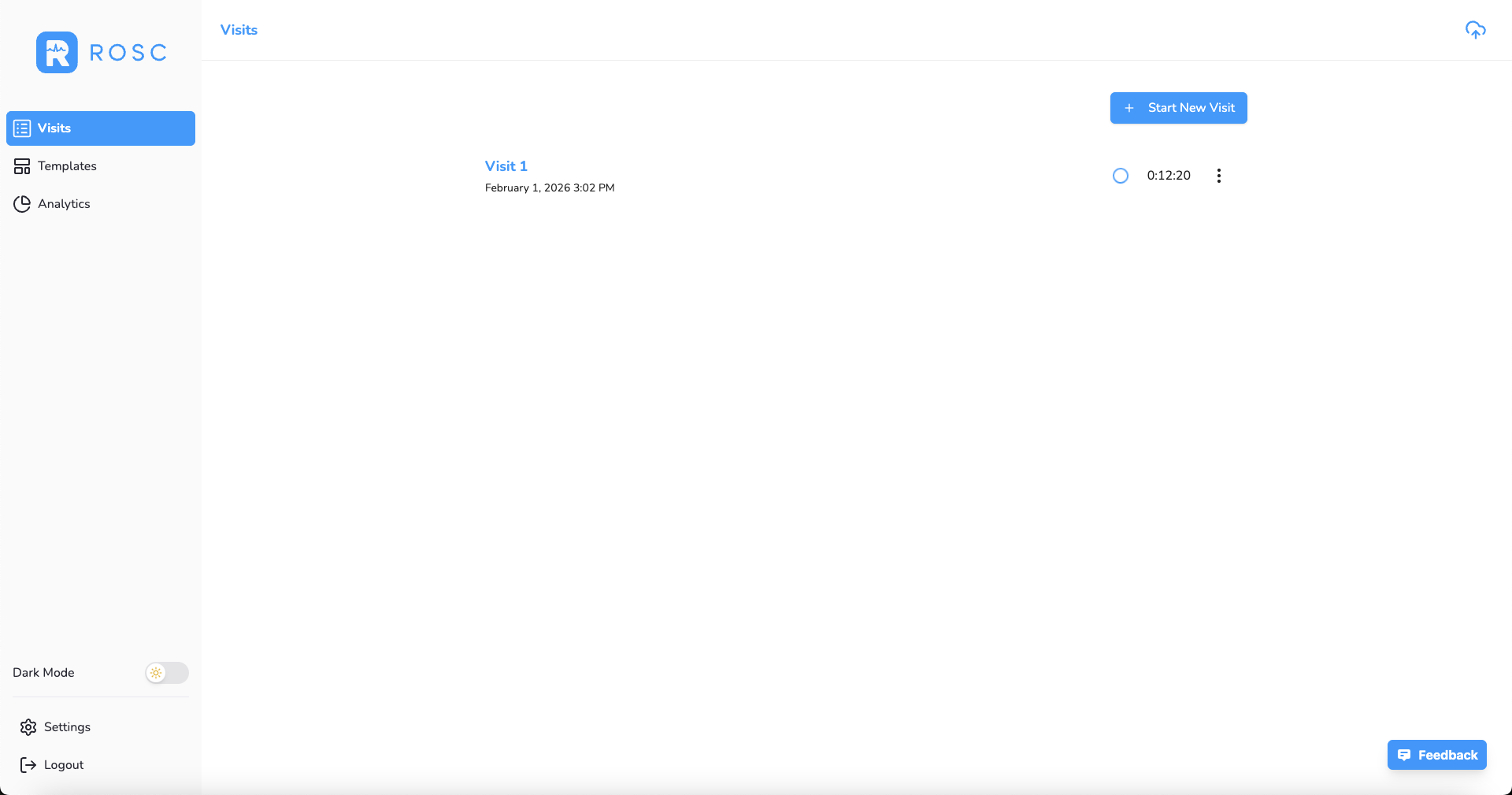
ROSC typically processes recordings within 30-60 seconds. While processing, you'll see a loading indicator:
When processing is complete, the loading wheel changes to a ready indicator and the title updates:
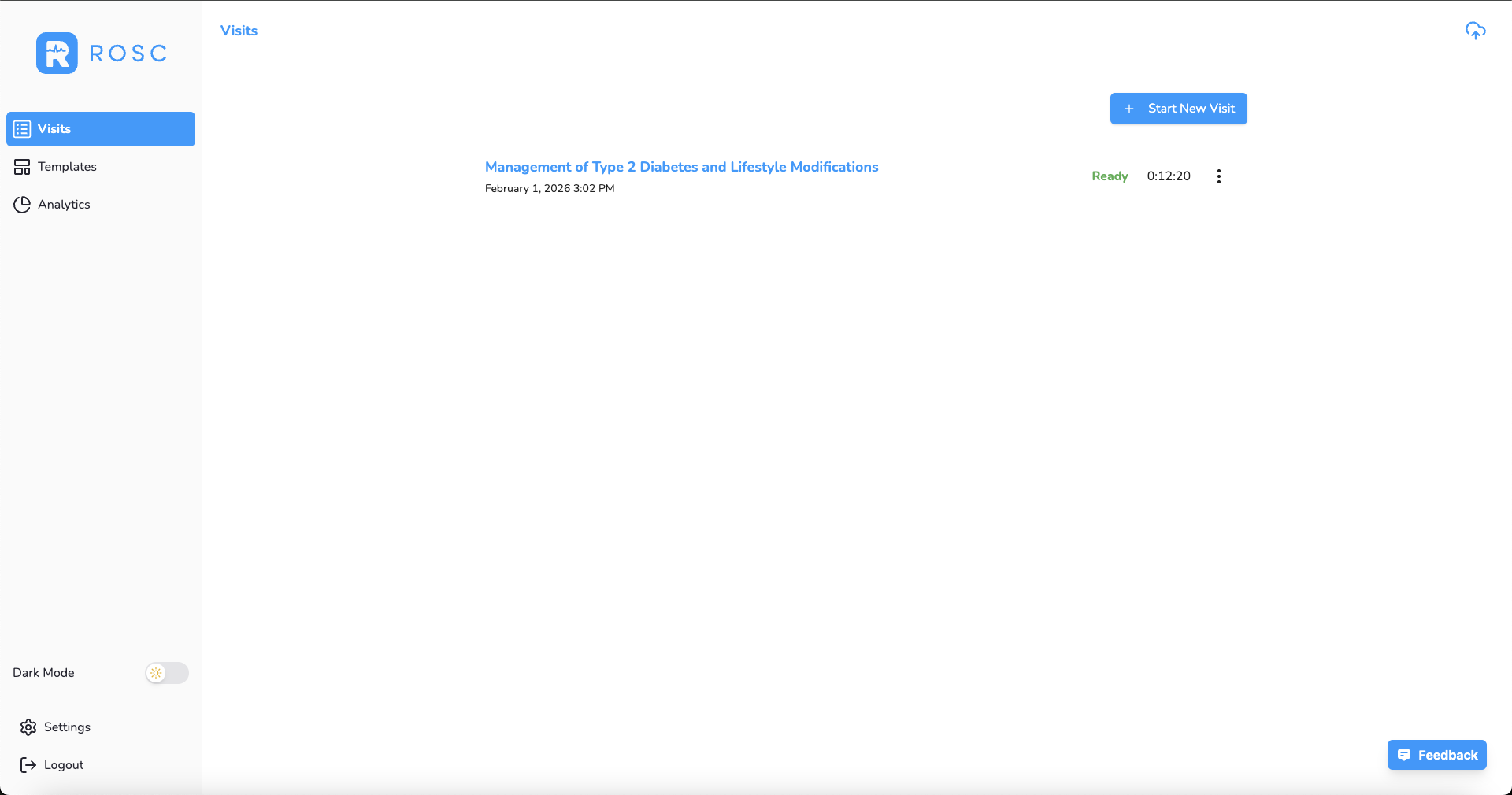
Click to Review: Once ready, click on the recording to open the transcription and AI-generated summary.
- 2
Review the generated medical note
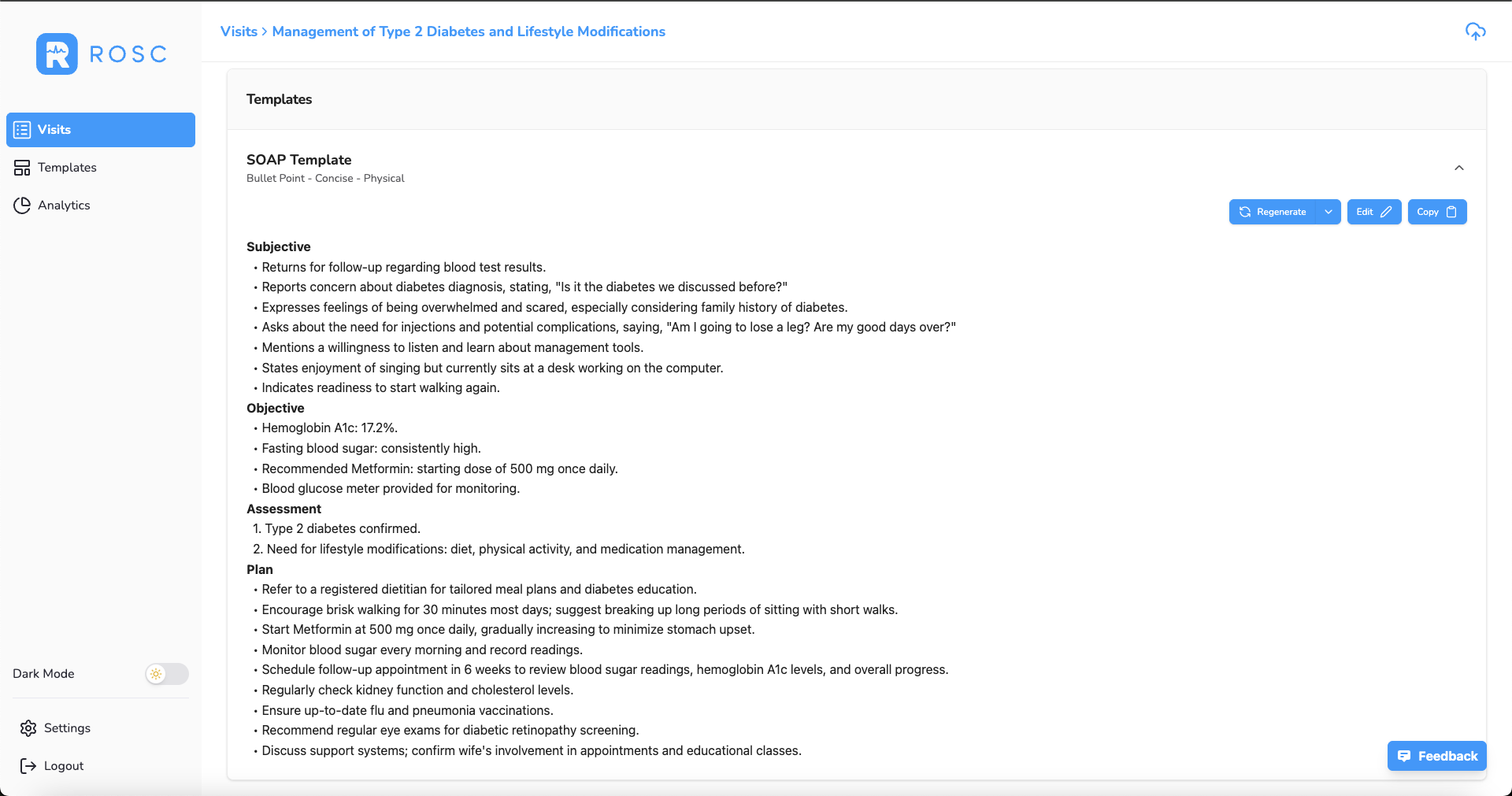
Once you click on a ready recording, you'll see the review interface with your transcription and AI-generated summary:
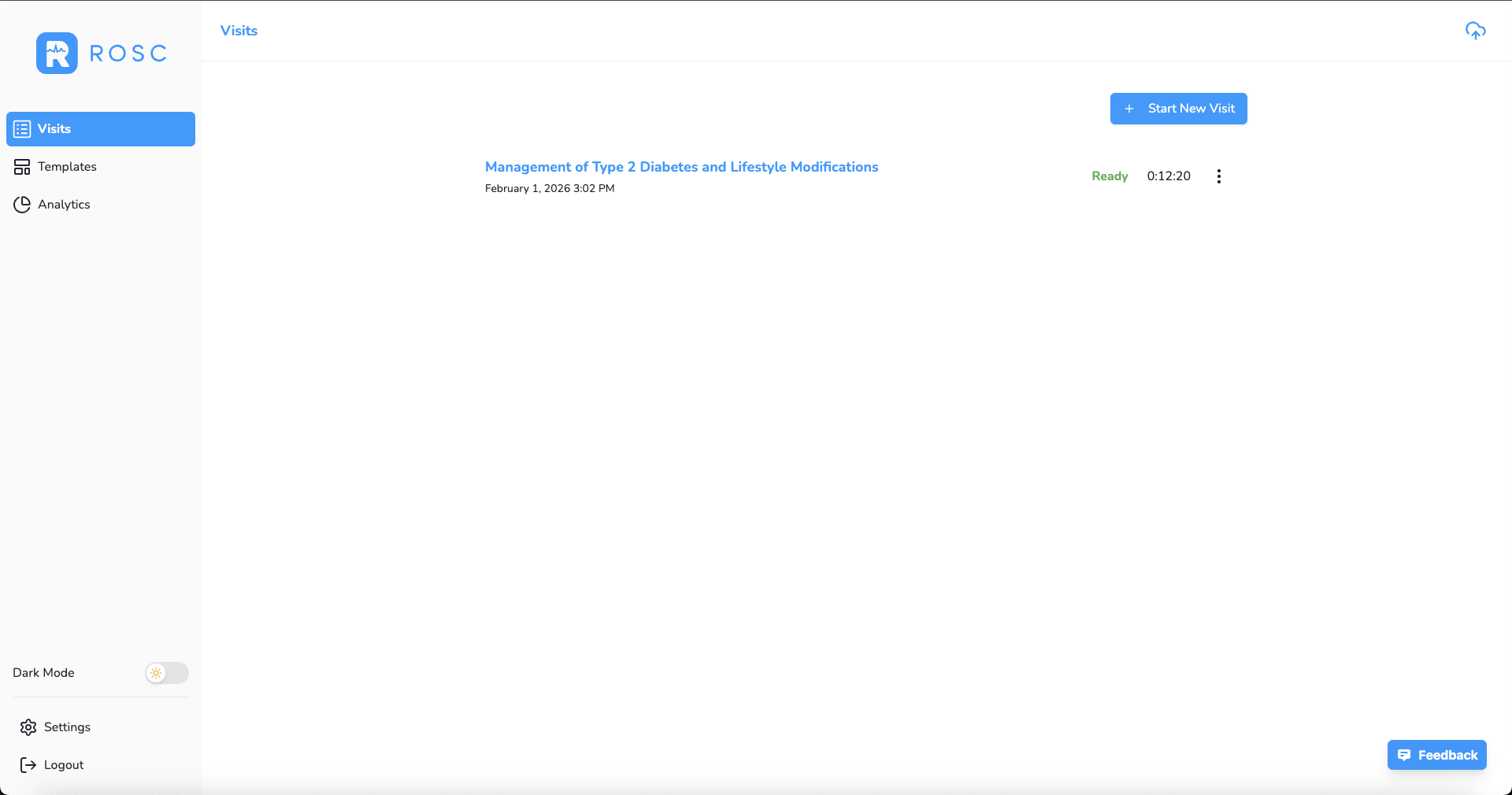
From this view, you can:
- Edit the Title: Click on the title to rename your note for easier organization
- View Transcription: See the full transcribed text from your recording
- Review Summarization: The AI-generated summary reflects the template, style, and format preferences you selected during recording
- Regenerate Summarization: Generate a new AI summary if you want a different result
- Edit Text: Directly modify any text in the summarization to make corrections or additions
- Generate New Note: Create a fresh summarization if needed
- Supplement Recording: Add a new recording to supplement the existing transcription and summarization
- Copy to Clipboard: When ready, click copy to copy the text to your clipboard for pasting into your EMR
Transcription View: The transcription section displays the full text captured from your recording:
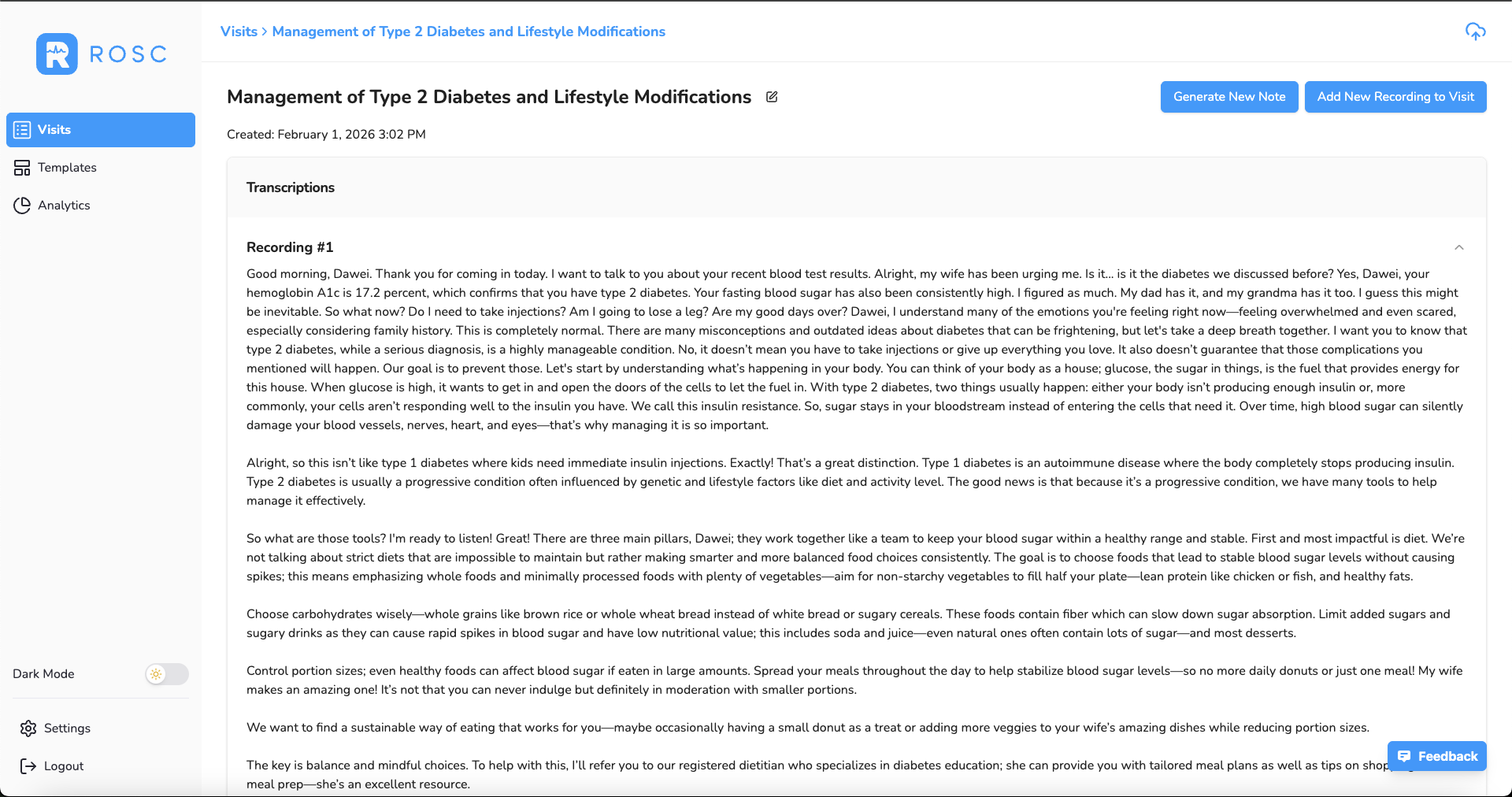
Summarization View: The summarization section shows your AI-generated clinical note formatted according to your selected preferences:
Important Reminder
Always review AI-generated notes before submitting to your EMR. While ROSC is highly accurate, you are ultimately responsible for all clinical documentation. Verify that all critical information is correct and complete.
Next Steps
Now that you know the basics of creating, recording, and reviewing notes, you're ready to explore advanced features like specialty templates, multi-language support, and EMR integration.