Spoken Shortcuts
Save wording you use often, then insert it into a note by saying or typing a short phrase
Your usual wording, in one phrase
A spoken shortcut is a short phrase linked to text you write again and again, such as a normal exam or standard advice. Save it once. When you say or type the phrase in the Assistant, ROSC adds your saved wording, exactly as you wrote it, to the right section of the note. You review the change before anything is saved.
Step-by-Step Instructions
- Create a spoken shortcut
In the ROSC web app, go to Templates and open the Spoken shortcuts tab. Fill in:
- Trigger phrase: what you will say, for example "normal respiratory exam".
- Section: the note heading the wording goes under, for example "Objective". To try more than one heading, separate them with a slash: "Objective/Examination".
- Saved wording: the exact text to insert.
Choose Save shortcut. It appears under Your spoken shortcuts, where the pencil button lets you edit it.
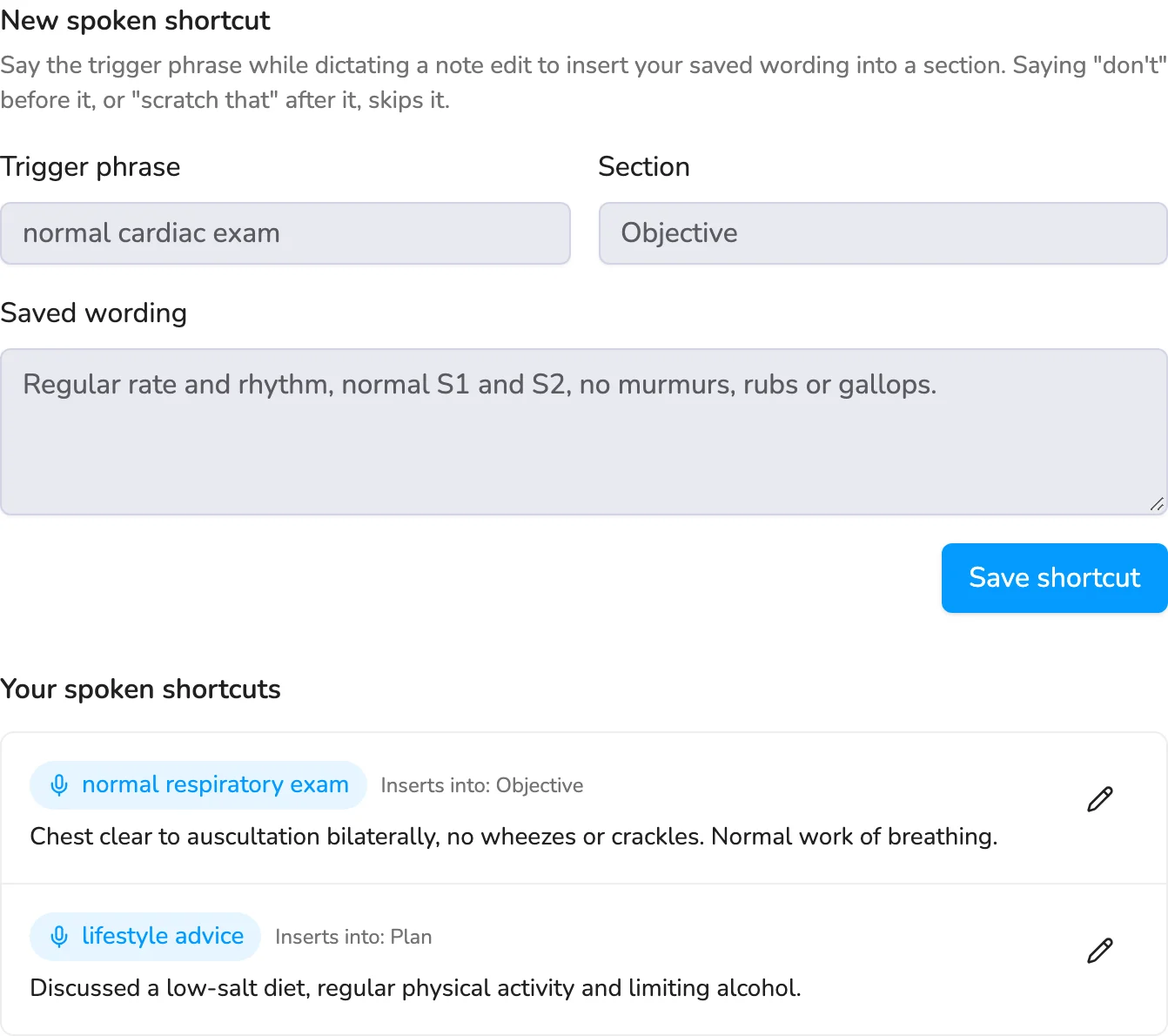
Creating a shortcut. Example data only. - Open a finished note and the Assistant
Open a visit from Visits once its note is ready. The Assistant panel sits beside the note. On a phone, tap the sparkle button next to the visit title to open it.
- Say or type the shortcut phrase
In What should change?, type the phrase, or tap the microphone and say it, for example "Insert normal respiratory exam and lifestyle advice." You can use more than one shortcut at once. Then choose Propose edit.
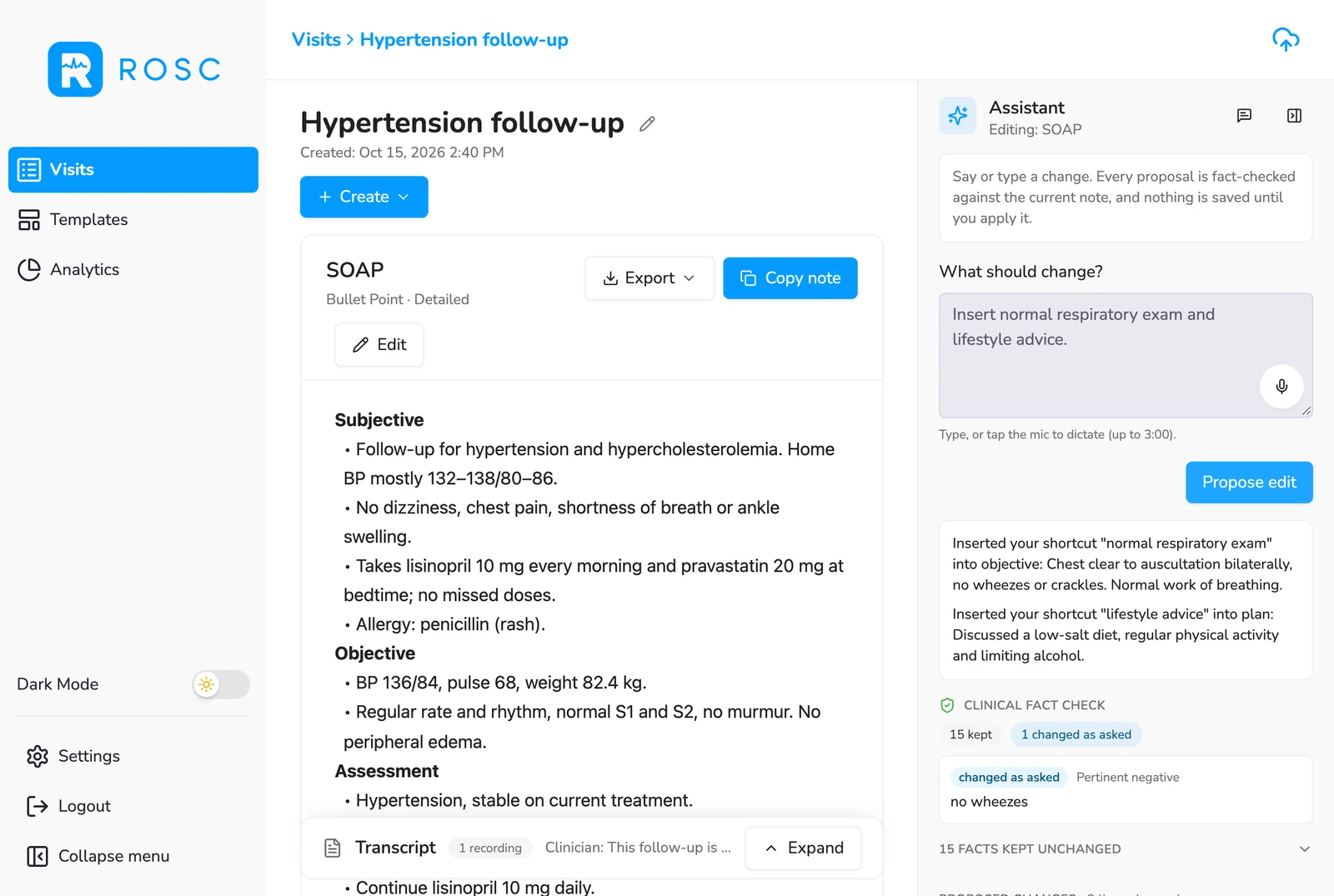
Two shortcuts used in one request. Example data only. - Review the inserted wording and apply it
ROSC tells you which shortcut went where, for example Inserted your shortcut "normal respiratory exam" into objective. The wording is added at the end of that section, as a bullet if the section is a bulleted list. If the note has no matching heading, ROSC adds the section at the end of the note.
Check the highlighted lines under Proposed changes and the Clinical fact check, then choose Apply, or Discard to leave the note as it was. Nothing changes in your note until you apply it.
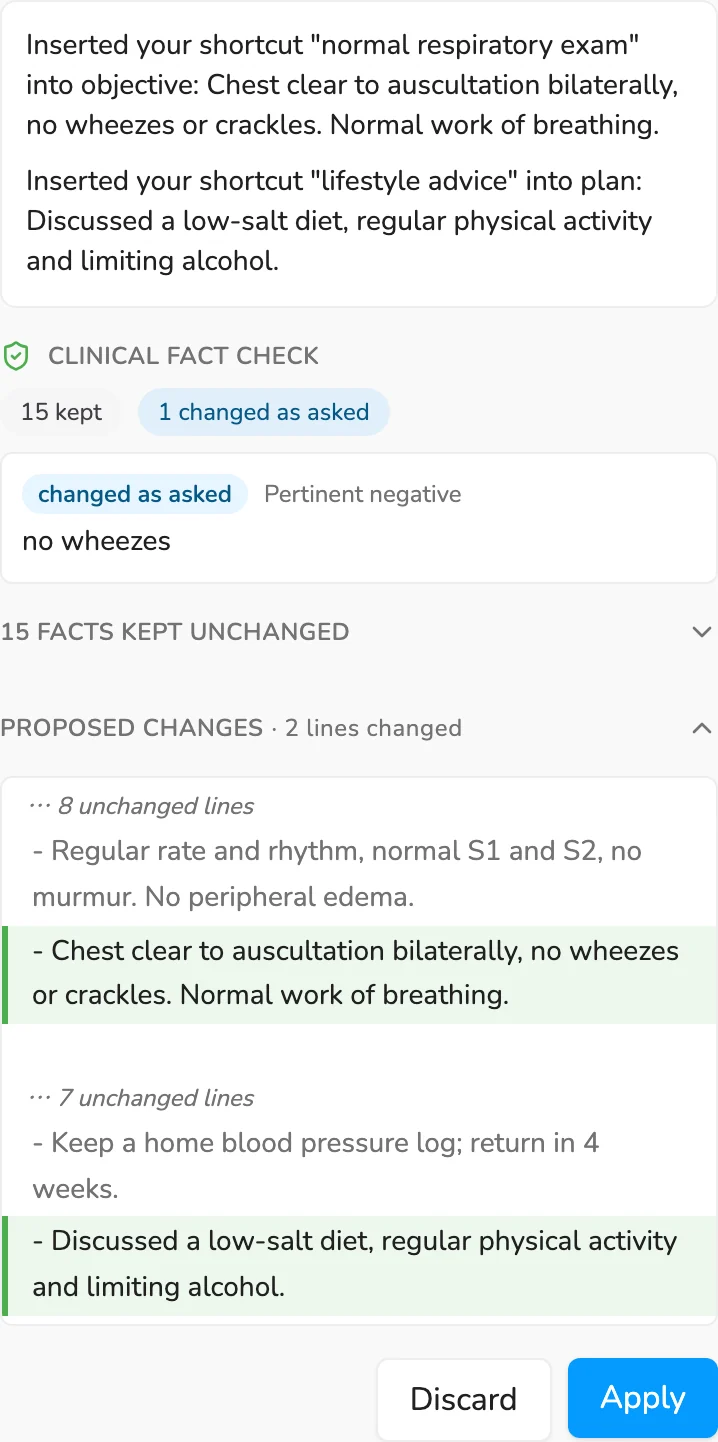
Review before you apply. Example data only.
- Changed your mind? Say "don't" before the phrase ("don't insert lifestyle advice") or "scratch that" after it, and ROSC leaves it out and tells you so. These cues are recognised in English.
- Shortcuts are used in the Assistant, after the note is generated. They aren't applied while you record the visit.
- When a request uses a shortcut, ROSC inserts the saved wording and doesn't make other changes from that request. Ask for other edits separately.
- Pick a distinctive phrase of a few words. ROSC allows for small transcription slips in longer phrases, while very short triggers such as "BP" only work when said on their own.
Troubleshooting
My shortcut wasn't inserted
Check that you said the trigger phrase as saved under Templates > Spoken shortcuts, and that nothing before or after it sounded like "don't" or "scratch that". If the phrase is very short, say it on its own, or give it a longer name.
The wording landed in a new section at the end
The Section field didn't match a heading in this note. Edit the shortcut so the section matches your template's heading, for example "Objective", or list alternatives such as "Objective/Examination".